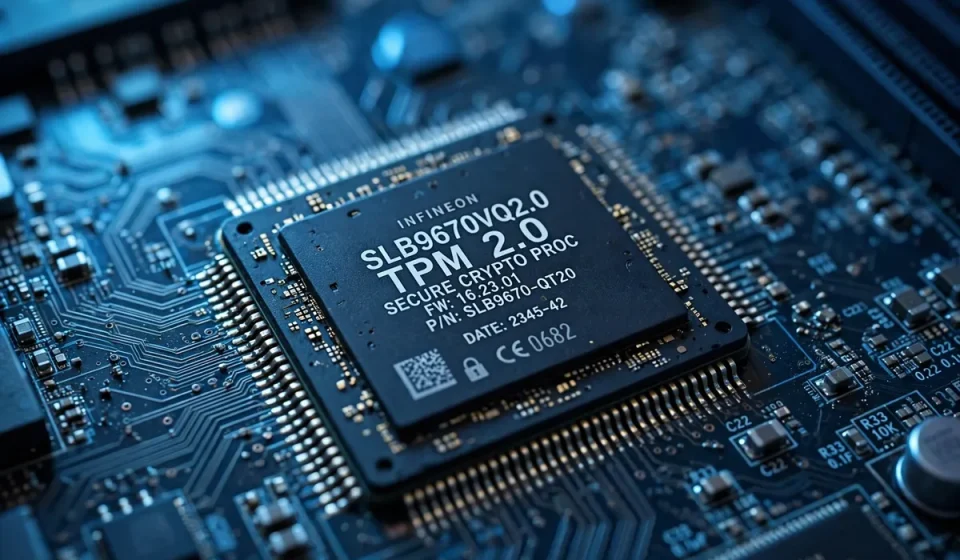

If you have ever checked your computer’s security settings, upgraded to Windows 11, or read a warning that your device needs TPM 2.0, you have probably asked a simple question: what is tpm?
In short, a Trusted Platform Module, or TPM, is a small security chip or firmware feature built into your computer that stores sensitive information in hardware, rather than in ordinary files that malware can copy. It creates and protects encryption keys, checks that your computer has started safely, and helps prove that your device is the device it claims to be. Because those keys never leave the chip in usable form, a TPM makes stealing passwords, certificates, and encrypted data far harder than software alone ever could.
What Is TPM?
A TPM is a dedicated security microcontroller, sometimes called a crypto-processor, that is designed for one job: keeping secrets safe. It can sit as a separate chip on a computer’s motherboard, or it can be built into the main processor as firmware TPM, often called fTPM on AMD systems or Platform Trust Technology, or PTT, on Intel systems. Either way, it works in the same way. It has its own protected storage, its own random-number generator, and a set of platform configuration registers that record measurements of the startup process.
The standard behind TPM technology comes from the Trusted Computing Group, an industry group whose specifications were later adopted internationally as ISO/IEC 11889. That shared standard matters. It means operating systems, security software, and device makers can rely on the same basic behaviour, rather than inventing a different secret store for every computer.
How Does a TPM Work?
A TPM works by generating, storing, and using cryptographic keys inside its protected hardware. When an application needs a key, it asks the TPM to perform the operation, such as signing data or decrypting a small secret, without handing over the private key itself. If malware infects Windows, it may see the result, but it cannot easily copy the key and use it on another machine. That separation is the whole point: secrets stay in hardware, while software only receives answers.
At startup, the TPM also measures the boot process. Each stage, from firmware to bootloader to operating system, is recorded in its platform configuration registers. If a rootkit or other low-level malware changes an early startup component, the measurements will not match the expected values. Windows and security tools can then refuse to unlock protected data, warn the user, or block a feature such as BitLocker until the problem is investigated. In this way, the TPM acts as a hardware witness to a safe boot.
What Does a TPM Protect?
In everyday use, a TPM protects the credentials that make modern security work. It can hold BitLocker drive-encryption keys, so a stolen laptop’s hard drive cannot simply be read in another computer. It can store Windows Hello keys and certificates used to sign in, protect virtual private network and Wi-Fi credentials, and support secure storage for passwords and biometric templates. For a deeper look at the encryption itself, see our guide to AES encryption.
That protection also strengthens authentication. Because a TPM key is tied to a specific device, a stolen password alone is less useful to an attacker. This is why hardware-backed keys work well alongside multi-factor authentication. Pairing a device-bound key with a second factor means an attacker needs both your credential and your physical computer, which is a much higher bar than guessing a password from anywhere in the world.
TPM 1.2 vs TPM 2.0
TPM 2.0 is the current standard, and the version you should look for on a modern computer. TPM 1.2 was an earlier, more limited specification. The table below summarises the main differences.
| Feature | TPM 1.2 | TPM 2.0 |
|---|---|---|
| Release | 2011 and earlier | 2014, current standard |
| Cryptography | Mainly RSA and SHA-1 | RSA, ECC, SHA-256 and newer algorithms |
| Algorithms | Fixed set | Flexible, algorithm-agile design |
| Windows support | Older Windows versions | Windows 10 and Windows 11, required for Windows 11 |
| Security | Weaker against modern attacks | Stronger, more flexible protection |
In practice, TPM 1.2 is now a legacy option. If your computer only has TPM 1.2, it will not meet the Windows 11 requirement, even if the rest of the hardware is fast enough.
Why Windows 11 Requires TPM 2.0
Microsoft made TPM 2.0 a requirement for Windows 11 to raise the security baseline for millions of computers at once. With a TPM, Windows can use features such as BitLocker, Windows Hello, Credential Guard, and measured boot more reliably, because the keys and boot measurements are anchored in hardware rather than in software that malware can tamper with.
That is also why the requirement caused confusion in 2021. Many capable computers already had a TPM, but it was disabled in firmware, or it was a firmware TPM that had not been switched on. The hardware was present; the setting was not. Checking and enabling it, as explained below, solved the problem for many owners without buying a new computer.
How to Check If Your PC Has TPM
Before you change any firmware setting, check what your computer already has. These checks are safe, and they do not change your system.
Use Windows Security
Open Windows Security, select Device security, and look for Security processor details. If a security processor is present, that section should show its specification version, such as 2.0, and whether it is ready for use. If the section is missing, your computer may not have a TPM, or it may be disabled in firmware.
Use tpm.msc
Press Windows key plus R, type tpm.msc, and press Enter. The TPM Management console will say whether a compatible TPM was found, and it will show the specification version on the right-hand side. A message saying that a compatible TPM cannot be found usually means the TPM is disabled, or the computer does not have one.
Check in Settings
You can also open Settings, then System, then About, and use the PC Health Check app to confirm Windows 11 compatibility. That tool reports TPM status alongside processor, memory, and storage requirements, which is useful if you are planning an upgrade rather than troubleshooting a single setting.
How to Enable TPM in BIOS or UEFI
If your check shows no TPM, but your computer is only a few years old, it may simply be switched off. Restart your computer and enter firmware setup, usually by pressing Delete, F2, F10, or Esc during startup; the exact key depends on your manufacturer. Look for a security, advanced, or trusted computing section, and find a setting named TPM, TPM Device, Security Chip, Intel PTT, or AMD fTPM.
Set that option to Enabled, save and exit, and then repeat the tpm.msc check in Windows. Do not clear the TPM unless you understand the consequences: clearing it removes stored keys, which can lock you out of BitLocker-protected drives or require recovery keys. If you use BitLocker, save your recovery key first, and if you are unsure, check your manufacturer’s support page for your exact model.
TPM vs Secure Boot: What’s the Difference?
TPM and Secure Boot are related, but they are not the same thing, and confusing them is a common mistake. Secure Boot is a firmware feature that checks that only signed, trusted software can start your computer. It blocks unsigned bootloaders and early-stage malware from loading before Windows starts. A TPM, by contrast, stores keys and records measurements of that startup process.
Think of Secure Boot as the guard at the door, and the TPM as the safe inside the building. Secure Boot decides what is allowed to run at startup, while the TPM keeps the keys safe and provides evidence about what actually ran. You can have Secure Boot without a TPM, and a TPM without Secure Boot, but together they are stronger: Secure Boot helps ensure a clean start, and the TPM proves it and protects the keys that depend on it.
Limitations and Risks
A TPM is powerful, but it is not magic. It does not protect you if you install malware yourself, fall for a phishing email, or reuse a weak password on a website. It also does not make a computer invulnerable if an attacker has long, physical access to the hardware. Its job is to raise the cost and difficulty of attacks, especially theft, boot-level malware, and key extraction, not to replace good security habits. For messages that leave your device, see our guide on how do you encrypt an email.
Frequently Asked Questions
What is TPM in simple terms?
A TPM is a security chip or firmware feature in your computer that stores encryption keys and checks startup in hardware, so malware cannot easily copy those secrets.
Does my PC have TPM 2.0?
Most computers from the last few years do. Check with Windows Security or tpm.msc; if the version shown is 2.0, you meet the Windows 11 requirement.
Is TPM the same as Secure Boot?
No. Secure Boot checks that only trusted software starts your computer, while a TPM stores keys and records startup measurements. They work best together.
Can I enable TPM myself?
Often, yes. Enter your BIOS or UEFI settings, find TPM, Intel PTT, or AMD fTPM, set it to Enabled, save, and recheck with tpm.msc.
Does TPM slow down my computer?
No, not in any way most users will notice. It handles small security operations in hardware and does not slow everyday apps, games, or browsing.
A TPM is a small chip with a large job: keeping your keys safe, your startup honest, and your computer harder to steal from.