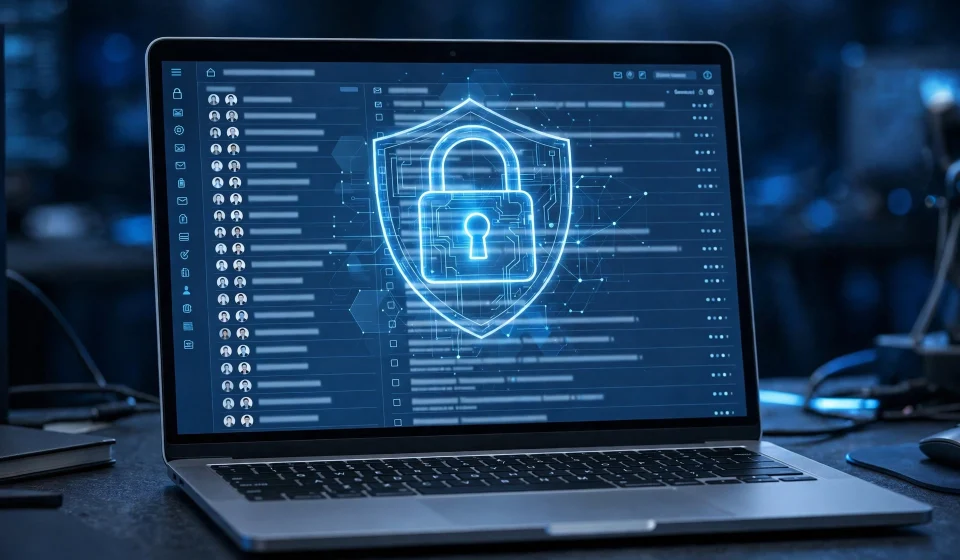

Encrypting an email means turning its readable text into scrambled code that only the intended recipient can unlock. Without encryption, an email is closer to a postcard than a sealed letter: anyone who can intercept it along the way, on public Wi-Fi, on a mail server, or in a compromised inbox, may be able to read it. With encryption, that same message becomes useless noise to everyone except the person holding the right key or password.
The good news is that you do not need to be a cryptographer to do this well. Most people can protect sensitive mail in a few minutes using tools already built into Gmail, Outlook, or Apple Mail, or by adding S/MIME or PGP for stronger, end-to-end protection. This guide explains the difference between those options, gives step-by-step instructions for each, and shows the mistakes that most commonly undo otherwise good encryption.
First, Decide What You Are Protecting Against
Not all email encryption protects against the same threat. Before you choose a method, ask who you are worried about:
- A snooper on the network: Transport encryption, usually TLS, protects mail while it travels between servers. It is automatic in most modern services, but it does not protect a message once it sits in a mailbox.
- A curious provider, administrator, or attacker who gains access to a mailbox: End-to-end encryption protects the message itself, so only the sender and recipient can read it, even if the stored copy is copied or stolen.
- The wrong recipient opening an attachment: A password-protected message or file adds a separate check, but it is only as strong as the password and the channel used to share it.
A useful mental model is the difference between protecting data in transit and protecting it at rest. Transport encryption is like an armored truck: excellent on the road, but it does not lock the warehouse. End-to-end encryption locks the package itself. For that reason, the strongest approach for sensitive material is end-to-end encryption, with transport encryption as a baseline underneath it.
The Main Ways to Encrypt an Email
| Method | What it protects | Best for | Main drawback |
|---|---|---|---|
| TLS transport encryption | Mail in transit between servers | Everyday mail, with no setup | Message is readable on mail servers and in mailboxes |
| S/MIME | Message and attachments, end to end | Workplaces, regulated industries, Outlook and Apple Mail users | Requires a certificate and key exchange |
| PGP / OpenPGP | Message and attachments, end to end | Journalists, activists, technical users, cross-platform mail | More setup; both sides must use compatible tools |
| Password-protected message | Access to that one message | One-off sensitive mail to a non-technical recipient | Password sharing can leak; provider may still hold a copy |
How to Encrypt an Email in Gmail
Gmail encrypts mail in transit with TLS by default, but it does not offer built-in end-to-end encryption for ordinary personal accounts. For a sensitive message, use one of these practical routes:
- Use Gmail Confidential Mode for a basic lock: Compose a message, click the lock-and-clock icon, set an expiry date and an SMS passcode, then send. The recipient must enter the code to open it. This is better than plain mail, but it is not true end-to-end encryption, and it works best when the recipient also uses Gmail.
- Encrypt the attachment instead: Put the sensitive document in a password-protected ZIP or PDF, attach it, and send the password by a different channel, such as a phone call or a separate messaging app. Never put the password in the same email.
- Use S/MIME through a Workspace account: If your organization uses Google Workspace, an administrator can enable S/MIME. You then upload your certificate in Gmail settings, and Gmail will sign and encrypt messages to recipients whose public certificates you have.
Worked example: suppose you must send a contract to a client. You save it as a PDF, protect that PDF with a 16-character passphrase generated by your password manager, attach it, and text the passphrase separately. Even if the email is forwarded by mistake, the attachment remains locked without the passphrase.
How to Encrypt an Email in Outlook
Outlook gives personal and business users the clearest built-in path:
- Compose a new message and click Options, then Encrypt.
- Choose Encrypt-Only if you want the recipient to be able to read the message but not forward it casually, or Do Not Forward if you also want to block forwarding, printing, and copying.
- Send the message. A recipient outside Microsoft 365 will receive a link and verify their identity with a one-time code.
For stronger, certificate-based protection, Outlook also supports S/MIME. In that case you need a digital certificate installed on your computer, and you must have the recipient’s public certificate before you can encrypt to them. Once set up, Outlook can both sign messages, proving they came from you, and encrypt them, so only the recipient can read them.
How to Encrypt an Email in Apple Mail
Apple Mail supports S/MIME on macOS and iOS:
- Obtain an S/MIME certificate from a trusted provider and install it in Keychain on your Mac or in Settings on your iPhone or iPad.
- Exchange signed emails with your recipient first, so each of you has the other public certificate.
- Compose a message to that recipient. Apple Mail will show a lock icon when encryption is available. Click it to turn encryption on before sending.
If the lock is greyed out, you do not yet have the recipient certificate. Send them a signed, unencrypted message first and ask them to reply with a signed message, then try again.
S/MIME vs. PGP: Which Should You Choose?
Both S/MIME and PGP provide end-to-end encryption and digital signatures, but they differ in how trust is established. S/MIME relies on certificates issued by a certificate authority, which fits workplaces that already manage identities. PGP relies on keys that users create and share themselves, which fits independent users who do not want to depend on a central authority.
For most employees, follow your organization choice: if IT issues S/MIME certificates, use S/MIME. For personal use with a technically comfortable contact, PGP tools such as GnuPG, Mailvelope, or Thunderbird built-in OpenPGP support are excellent. The worst choice is to delay encryption while debating which is perfect; either well-configured option is vastly better than plain text.
A Simple Decision Checklist
- Is this routine, low-sensitivity mail? Rely on TLS and good account security.
- Does it contain passwords, financial details, medical information, legal documents, or trade secrets? Use end-to-end encryption or a password-protected attachment.
- Is the recipient non-technical and one-off? Use Outlook encryption, Gmail Confidential Mode, or a password-protected file with the password sent separately.
- Is this an ongoing, sensitive correspondence? Set up S/MIME or PGP properly once, then use it every time.
- Have you verified the recipient key or certificate? Never encrypt to an unverified key for highly sensitive material.
Mistakes That Undo Email Encryption
Encryption fails most often through ordinary human error, not broken mathematics. Watch for these traps:
- Sending the password in the same email: This is like taping the house key to the front door. Use a different channel.
- Encrypting only the attachment, then pasting the secret in the body: Encrypt the sensitive content itself, not just the file around it.
- Trusting the padlock alone: A transport padlock does not mean the message is encrypted at rest in the recipient mailbox. For stored mail, end-to-end protection matters, which is why understanding what data at rest means helps you judge the full risk.
- Ignoring metadata: Encryption usually hides the body, not the sender, recipient, subject line, or time. Keep sensitive details out of subject lines.
- Assuming encryption stops phishing: An encrypted phishing email is still a phishing email. Encryption proves secrecy, not honesty, so verify unexpected requests through another channel. Phishing remains a leading way accounts are taken over, as shown in the Snapchat phishing case study.
- Losing your private key: If you lose the only key that can decrypt your mail, that mail may be lost forever. Back up keys securely, ideally offline and encrypted.
Network-level protection also helps, but it is not a substitute for message encryption. Transport protocols such as IPsec can protect traffic between networks, yet a message that arrives safely can still be read by anyone with mailbox access unless it was encrypted end to end.
What About Encrypted Email Services?
Services such as Proton Mail and Tutanota build end-to-end encryption into the mailbox itself, so messages between users of the same service are encrypted by default. They reduce setup, but they still have limits: mail to outside providers may fall back to password-protected messages, and you must trust the provider software and key handling. They are a good choice if you want strong defaults with less configuration, and a poor excuse to skip basic habits such as strong passwords and two-factor authentication.
Frequently Asked Questions
How do you encrypt an email for free?
Use the free encryption already in your mail app: Outlook Encrypt option, Gmail Confidential Mode, or a password-protected PDF or ZIP for an attachment, or set up free OpenPGP with tools such as Thunderbird or Mailvelope. For ongoing sensitive mail, a free S/MIME certificate from a reputable provider can also work, although workplace certificates are usually issued by IT.
Can the recipient read an encrypted email without special software?
Often, yes. Outlook encrypted messages open through a web link with a one-time code, and password-protected files open in ordinary PDF or ZIP tools. S/MIME and PGP messages, by contrast, require the recipient to have a compatible mail client and the right key or certificate.
Does encrypting an email hide the subject line?
With S/MIME and PGP, the subject line is often not fully encrypted, and with transport-only encryption it is visible to mail servers. Treat the subject as public: write Contract attached rather than a detailed sensitive description.
Is Gmail Confidential Mode the same as end-to-end encryption?
No. Confidential Mode controls access and expiry and can require a passcode, but Google still handles the message. True end-to-end encryption means only the sender and recipient hold the keys needed to read it.
What should I do if I receive an encrypted email I cannot open?
First, check whether you need a one-time code, a password, or a certificate, and ask the sender, through a separate channel, which one they used. Do not disable security settings or install unknown software to open it. If it claims to be urgent and asks you to act immediately, verify the sender independently before trusting it.