
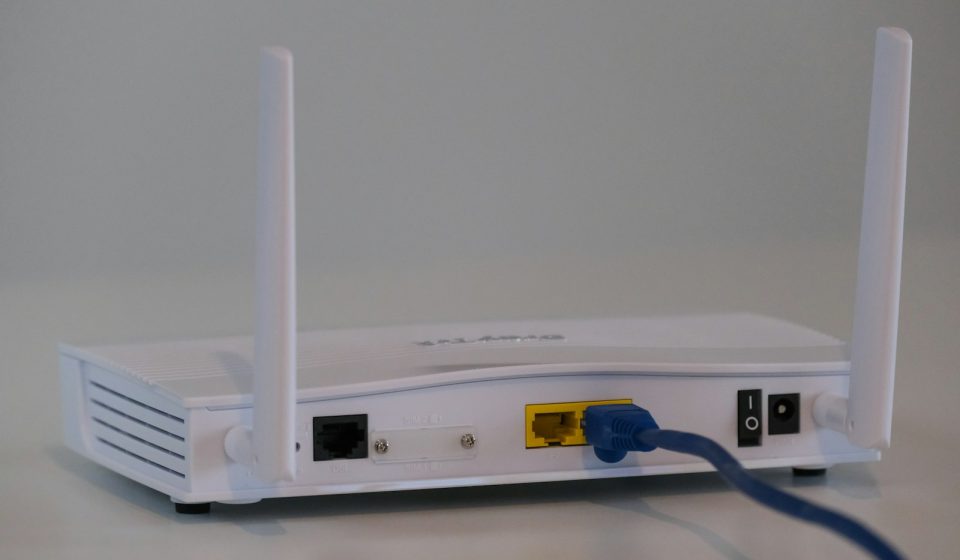

What is a network switch? It is the device that lets the computers, printers, servers, and other gadgets on a local network talk to each other quickly and privately. If you have ever wondered what the blinking box with a row of Ethernet ports in an office wiring closet does, that box is usually a switch. It sits at the heart of most wired networks, from a small home office to a large enterprise campus, directing traffic so that each message reaches only the device it was meant for.
This guide explains what a network switch is, how it works using MAC addresses, how it differs from a hub and a router, the difference between managed and unmanaged switches, and what to look for when you buy one.
What Is a Network Switch?
A network switch is a networking device that connects multiple devices within a local area network (LAN) and forwards data between them. Each device plugs into one of the switch’s ports with an Ethernet cable or, in some setups, a fiber connection, and the switch moves data from one port to another based on the destination device’s address.
Think of a switch as a smart mailroom for your network. Instead of shouting every message to everyone in the building, the mailroom reads the address on each envelope and delivers it straight to the right desk. That targeted delivery is what makes switches fast and efficient.
Switches work mainly at Layer 2, the data link layer, of the OSI model, where devices are identified by MAC addresses. More advanced Layer 3 switches can also forward traffic between networks using IP addresses, which blurs the line between a switch and a router.
A single switch can connect as few as five devices in a home setup or hundreds in an enterprise network, and several switches can be linked together to cover a whole building or campus.
How Does a Network Switch Work?
When a device sends data through a switch, the switch follows three steps: learn, look up, and forward.
- Learn. When a device first sends a frame, the switch notes the sender’s MAC address and the port the frame arrived on, and stores the pair in a table called the MAC address table (also known as the CAM table).
- Look up. When a frame arrives, the switch reads the destination MAC address in the frame header and checks the MAC address table for the port that leads to that device.
- Forward. If it finds a match, the switch forwards the frame only to that port. If the destination is unknown, it floods the frame to all ports except the one it came from, then learns the correct port from the reply. Broadcast frames, such as ARP requests, are also sent to every connected device.
Entries in the MAC address table age out after a period of inactivity, so the switch keeps relearning the network as devices connect, disconnect, or move to different ports.
Modern switches give every port its own collision domain and support full-duplex communication, so a device can send and receive at the same time without collisions. That is a big reason a switch is far faster than the hubs it replaced: traffic stays private to its sender and receiver, bandwidth is not shared with every device, and the network stays fast as more devices join.
What Does a Network Switch Do?
- Connects devices: links computers, printers, servers, access points, cameras, and VoIP phones into one local network.
- Forwards traffic intelligently: sends each frame only to its destination port instead of to every device.
- Reduces congestion: gives each port dedicated bandwidth and eliminates most collisions.
- Extends the network: adds ports when a router runs out, and links to other switches to cover larger spaces.
Switch vs Hub vs Router
Switches, hubs, and routers are often confused because they all connect devices, but they work very differently.
| Feature | Hub | Network Switch | Router |
|---|---|---|---|
| Forwards traffic to | Every connected device | Only the destination device | Another network |
| Address used | None | MAC address | IP address |
| OSI layer | Layer 1 (physical) | Layer 2 (some Layer 3) | Layer 3 (network) |
| Speed and efficiency | Low; shared bandwidth and collisions | High; dedicated bandwidth per port | Varies; routes between networks |
| Traffic privacy | Poor; every device sees all traffic | Good; traffic is isolated per port | Good; separates networks |
| Typical use today | Obsolete; replaced by switches | Connecting devices inside a LAN | Connecting a LAN to the internet |
A hub simply repeats everything it receives to every port, wasting bandwidth and creating collisions. A switch learns where each device lives and delivers traffic only where it belongs. A router works at a higher level: it connects separate networks, such as your LAN and the internet, and chooses the best path between them. Many home routers have a small switch built in, so their ports behave like a switch for wired devices. Most networks need both: a switch for fast local traffic and a router for internet access.
Types of Network Switches
- Unmanaged switches: plug-and-play devices with no configuration. Best for homes and small offices.
- Managed switches: configurable switches with VLANs, QoS, monitoring, and security controls. Best for businesses and larger networks.
- Smart switches: a middle ground with a web interface and basic management features at a lower price than fully managed models.
- PoE switches: deliver power over the Ethernet cable to devices such as wireless access points, IP cameras, and VoIP phones, so they need no separate power adapter.
- Layer 3 switches: combine switching with basic routing between VLANs and subnets, reducing the load on a separate router.
- Stackable switches: several physical switches that can be linked and managed as one larger switch.
Managed vs Unmanaged Switches
The biggest buying decision is usually between a managed and an unmanaged switch. Here is how they compare.
| Feature | Unmanaged Switch | Managed Switch |
|---|---|---|
| Setup | Plug and play; no configuration | Requires setup through a web interface, CLI, or cloud dashboard |
| Control | None; runs with fixed default settings | Full control over ports, traffic, and features |
| VLANs | Not supported | Supported; segment traffic for security and performance |
| QoS | Not configurable | Configurable traffic prioritization |
| Monitoring | Basic status lights only | Port statistics, logs, and SNMP monitoring |
| Security features | Minimal | Port security, 802.1X, ACLs, DHCP snooping |
| Cost | Low | Higher, plus more setup time |
| Best for | Home networks and small offices | Businesses, schools, and growing networks |
Choose an unmanaged switch for the simplest, cheapest way to add wired ports when you do not need to control traffic. Choose a managed switch to separate traffic into VLANs, prioritize voice or video, monitor the network, or enforce security policies. If your network is likely to grow, a managed or smart switch is the safer long-term investment.
Key Features to Look for When Choosing a Network Switch
Use this checklist before you buy.
- Port count and speed. Count the wired devices you have today and add 20 to 25 percent spare ports for growth. Gigabit Ethernet is the minimum for most networks; consider 2.5GbE or 10GbE ports for servers, NAS devices, and high-speed uplinks.
- Power over Ethernet (PoE). If you run wireless access points, IP cameras, or VoIP phones, a PoE or PoE+ switch powers them through the network cable. Check the total PoE power budget, not just the per-port rating.
- VLAN support. VLANs let you split one physical switch into separate virtual networks, for example keeping guest Wi-Fi, IoT devices, and office computers apart.
- Quality of Service (QoS). Quality of Service (QoS) lets the switch prioritize latency-sensitive traffic such as voice and video calls over downloads and backups.
- Security features. Look for port security, 802.1X authentication, access control lists (ACLs), DHCP snooping, and storm control, especially on business networks.
- Management options. Managed switches are configured through a web interface, a command line, cloud management, or Simple Network Management Protocol (SNMP) monitoring tools.
- Switching capacity and forwarding rate. These numbers show how much traffic the switch can handle at once. A switch whose capacity is far below the sum of its port speeds can become a bottleneck.
- Uplinks, stacking, and build. SFP or SFP+ uplinks connect switches and routers at high speed, stacking links several switches into one, and fanless models run quieter in small offices.
Network Switch Security: What to Watch
A switch is not a security device on its own, but a poorly secured one can expose your network. Attackers can flood the MAC address table to force a switch to behave like a hub, plug into an unused port, or hop between poorly configured VLANs. Reduce the risk by disabling unused ports, changing default admin passwords, keeping firmware updated, using port security and 802.1X where possible, and separating sensitive devices into their own VLANs. A switch should also sit behind a network firewall at the edge of your network, which inspects incoming internet traffic and blocks threats before they reach your devices.
How to Choose the Right Network Switch for Your Network
- Count your wired devices, then add spare ports for growth.
- Match port speed to your needs: Gigabit for most devices, faster ports for servers and uplinks.
- Decide whether you need PoE for access points, cameras, or phones.
- Pick unmanaged for simplicity, managed for control, monitoring, and security.
- Check VLAN, QoS, and security features against your actual requirements, not the marketing sheet.
- Buy from a reputable brand with a solid warranty and firmware support.
Frequently Asked Questions About Network Switches
Do I need a network switch at home?
Yes, if you have more wired devices than your router has ports, or if you want faster, more reliable connections for a desktop PC, game console, smart TV, or NAS. A switch adds ports and keeps local traffic fast without replacing your router.
What is the difference between a network switch and a router?
A switch connects devices within a single local network and forwards traffic using MAC addresses. A router connects different networks, such as your home network and the internet, and forwards traffic using IP addresses. Most networks use both.
Is a managed switch worth it?
For a home network with a few devices, usually not; an unmanaged switch is cheaper and simpler. For a business, school, or growing network, a managed switch is worth it for VLANs, QoS, monitoring, and security controls.
How many ports should a network switch have?
Count every device you plan to connect by cable, then add 20 to 25 percent extra for future devices. For most homes, an 8-port switch is enough; small offices often need 16 or 24 ports.
Does a network switch slow down your internet?
No. A good switch forwards local traffic at full port speed and does not limit your internet connection. Slowdowns usually come from the internet plan, the router, or a switch with too little switching capacity for its ports.
The Bottom Line
A network switch is the quiet workhorse of a local network: it learns the MAC address of every connected device and forwards each frame only to its destination, keeping traffic fast, private, and collision-free. Understand the difference between switches, hubs, and routers, weigh managed against unmanaged models, and choose a switch with the ports, speed, PoE, and security features your network actually needs, and your wired network will stay fast and reliable as it grows.



-
-
-
-
-
-
Show Comments[…] servers changes how requests reach your site, so review your network layer too. Our guide to what a network switch is explains the hardware that carries that traffic inside your data center and cloud […]
[…] Both matter for security, and both are defined by the principle of least privilege: allow only the traffic that has a business reason to exist, and deny everything else. That principle applies to every device on the path, from the perimeter firewall down to the host firewall on a single server. To understand the devices that carry this traffic, see our guide to what a network switch is and how it works. […]
[…] can happen at several points. At a network switch, a port can be assigned a VLAN or shut down entirely. On Wi-Fi, the user can be placed on a […]
[…] can work for short runs, but you should confirm the actual distance and test the installed link. A network switch that supports 10 GbE is only as fast as the cabling behind it, so the cable and the switch should […]
[…] network switch uses its MAC address table to forward frames inside a LAN. A router uses its routing table to […]
[…] destination MAC address in its MAC address table and forwards the frame out of the right port. A network switch does this by default, and no routing is […]