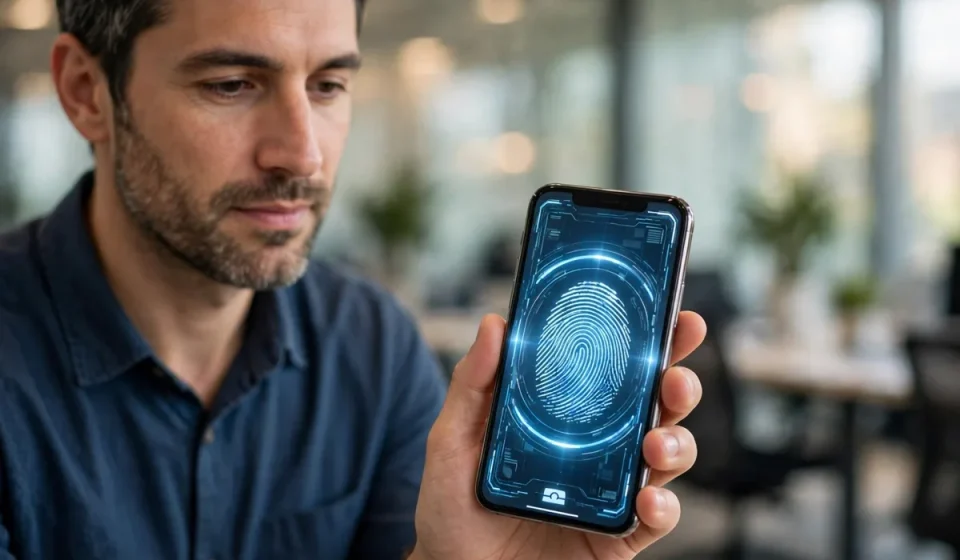

BYOD meaning is simple: BYOD stands for “bring your own device.” It is a workplace policy that lets employees use their personal phones, laptops and tablets to access company systems, email, files and apps, instead of — or alongside — company-owned equipment.
Done well, BYOD is convenient and can save money. Done badly, it opens the door to lost data, malware and accounts that IT cannot control. This guide explains the BYOD meaning in plain English, the benefits and risks, and how to run a BYOD policy that is actually secure.
BYOD Meaning in Plain English
Under a BYOD policy, the device belongs to the employee, but the company data on it does not. That split is the whole challenge. A typical BYOD setup gives staff access to work email, cloud apps and internal tools from a personal phone, while the company tries to protect its data with rules, apps and remote controls.
BYOD is different from company-owned devices (often called COPE — corporate-owned, personally enabled) and from “choose your own device” (CYOD) schemes, where staff pick from an approved list the company still owns and manages.
How BYOD Works in Practice
1. Enrolment
The employee registers their device with the company, usually by installing a management app or work profile. This lets IT apply security rules without taking over the whole phone.
2. Separation of work and personal data
Modern phones support work profiles or containers that keep work apps and data separate from personal photos, messages and apps. If the employee leaves, IT can wipe only the work container.
3. Access controls
Access to company systems is gated by identity checks — strong passwords, multi-factor authentication and device health checks. If a device is unpatched, jailbroken or missing a screen lock, access can be blocked. Learn how these controls fit together in our guide to identity access management.
4. Ongoing management
IT can push security updates, enforce encryption, require a VPN on public Wi-Fi, and remotely lock or wipe work data if a device is lost or stolen.
BYOD vs Company-Owned Devices
| Factor | BYOD (personal device) | Company-owned device |
|---|---|---|
| Upfront cost | Low for the company; staff buy the device | High; company buys and replaces devices |
| Employee convenience | High; one familiar device | Lower; staff may carry two devices |
| IT control | Limited to the work profile | Full control over the whole device |
| Privacy concerns | Higher; staff worry IT can see personal data | Lower; device is clearly for work |
| Security risk | Higher if unmanaged; mixed personal apps | Lower; standard, locked-down build |
Neither model is right for every organisation. Many companies now mix the two: BYOD for general office work, company-owned devices for staff handling sensitive data.
Benefits of BYOD
- Lower hardware costs: the company avoids buying, insuring and replacing every device.
- Happier, more productive staff: people work faster on devices they already know.
- Flexibility: remote and hybrid work becomes easier when staff can work from any device.
- Faster onboarding: a new starter can be productive on day one without waiting for hardware.
Risks of BYOD
- Data leakage: work files can be copied to personal cloud storage, shared in personal chats, or left on a device after someone leaves.
- Malware and unsafe apps: personal devices run games, sideloaded apps and old software that company devices would never allow.
- Lost or stolen devices: a phone left in a taxi may hold email, documents and saved logins.
- Weak security habits: no screen lock, reused passwords, and public Wi-Fi without a VPN all raise the risk.
- Privacy and legal tension: wiping a personal phone — even just the work data — needs clear, agreed rules.
Practical Example
A 40-person consultancy let staff use personal phones for email and its cloud CRM. One consultant lost a phone that had no screen lock and a saved login to the CRM. The company could not wipe it, because the device had never been enrolled. It had to reset the account password and audit the CRM for misuse — a weekend of work that enrolment and a mandatory screen lock would have prevented.
The fix was not to ban BYOD. It was to enrol every device, require a passcode and encryption, and route access through single sign-on so a lost device meant one revoked session, not a data breach. See how single sign-on works in our guide to SAML meaning and the access controls in cloud-based access control systems.
A Secure BYOD Checklist
- Write a short, plain-English BYOD policy and get staff to accept it before enrolment.
- Require a screen lock, device encryption and up-to-date operating system.
- Use a work profile or container so work data can be wiped separately.
- Require multi-factor authentication for every work app.
- Allow only approved app stores; block jailbroken or rooted devices.
- Require a VPN on public Wi-Fi and block access from untrusted networks where possible.
- Keep an inventory of enrolled devices and revoke access immediately when someone leaves.
- Train staff on phishing and on what not to do with work data on a personal device.
Frequently Asked Questions
What is the byod meaning?
BYOD meaning is “bring your own device”: a policy letting employees use personal phones, laptops and tablets for work, under company security rules.
Is BYOD safe?
It can be, if devices are enrolled, encrypted, protected by multi-factor authentication and separated into work and personal areas. Unmanaged BYOD is risky.
Can an employer wipe my personal phone under BYOD?
With a work profile, the employer should only be able to wipe work data, not your photos and personal apps. The policy should state this clearly before you enrol.
What is the difference between BYOD and CYOD?
BYOD uses the employee’s own device; CYOD (choose your own device) lets staff choose from company-approved devices that the company still owns and manages.
Do small businesses need a BYOD policy?
Yes, even an informal one. If staff check work email on personal phones, you already have BYOD — a written policy and basic enrolment turn an unmanaged risk into a controlled one.