
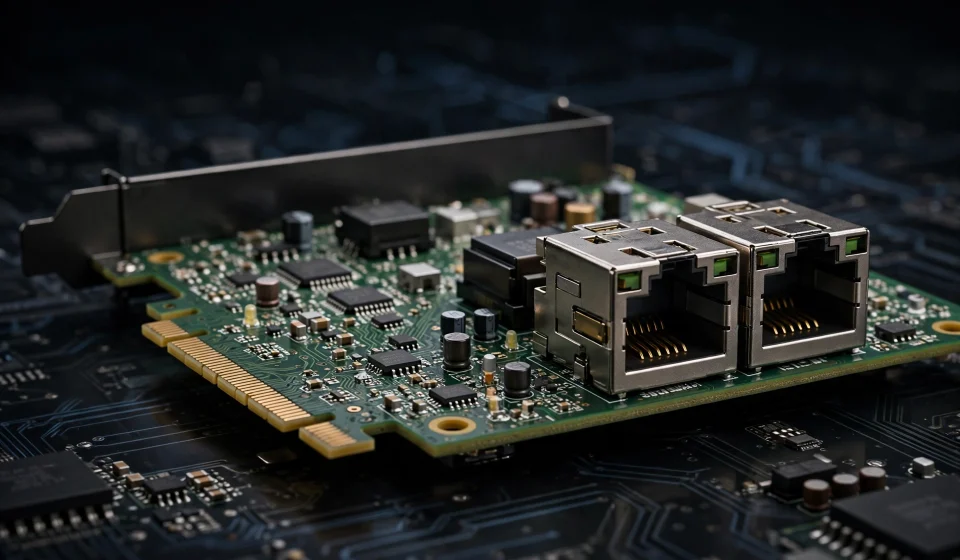

What is a NIC network? A NIC, short for network interface card, is the hardware that connects a computer, server, printer or other device to a network so it can send and receive data. Without a NIC, a device cannot join a wired Ethernet network or a Wi-Fi network, no matter how fast its processor is or how much memory it has. In simple terms, the NIC is the doorway between your device and the network.
Every device that connects to the internet or to a local network uses some form of NIC. In a laptop, it may be a small chip built into the motherboard. In a desktop, it may be a separate card that plugs into a PCIe slot. In a server, it may be a high-speed dual-port or quad-port card designed to handle heavy traffic around the clock. The form changes, but the job is the same: turn the data your computer wants to send into signals that can travel over a cable or through the air, and turn incoming signals back into data your computer can understand.
This guide explains what a NIC network interface card is, how it works, the main types, the speeds you can expect, how a NIC differs from a modem, a router and a switch, and how to choose, install and secure one. By the end, you will know exactly which NIC fits your home, office or server, and how to fix it when it stops working.
What Is a NIC (Network Interface Card)?
A network interface card is a hardware component that provides a physical and logical connection between a computing device and a computer network. It is also called a network adapter, network interface controller, LAN card or Ethernet card. Most modern NICs support the Ethernet standard for wired connections, the Wi-Fi standard for wireless connections, or both.
The NIC sits between the device and the network medium. On one side it talks to the computer through a bus such as PCIe, USB or an on-board connection. On the other side it talks to the network through an RJ45 Ethernet port, a fibre-optic port, or a wireless antenna. It handles the low-level work of networking, so the operating system and applications do not have to manage electrical signals, radio waves or fibre light pulses themselves.
A NIC works at the data link layer, Layer 2, of the OSI model, and it also touches the physical layer, Layer 1. That is why it has a unique hardware address, called a MAC address, burned into it by the manufacturer. The MAC address identifies the NIC on the local network, while the IP address identifies the device on a larger network. The two work together: the IP address says where data should go in broad terms, and the MAC address says which physical device on the local network should receive it.
How Does a NIC Work?
When you send an email, open a website or stream a video, your computer creates data and hands it to the NIC. The NIC breaks the data into small units called frames, adds the source and destination MAC addresses, adds error-checking information, and then converts the frames into electrical signals, light pulses or radio waves, depending on the medium. Those signals travel across the cable or the air to a switch, router or wireless access point, and from there to their destination.
Receiving works in reverse. Signals arrive at the NIC, which converts them back into digital frames. It checks the destination MAC address to see whether the frame is meant for this device. If it is, the NIC checks the frame for errors, strips away the networking headers, and passes the data up to the operating system. If the frame is not meant for this device, the NIC usually ignores it. This filtering is one reason a network with many devices does not overwhelm every computer with everyone else’s traffic.
The ARP table is central to this process on a local network. ARP, the Address Resolution Protocol, maps IP addresses to MAC addresses, so a device can find the correct NIC to send a frame to. Without that mapping, a computer would know the destination IP address but not which physical card should receive the data.
Modern NICs also offload work from the CPU. Features such as checksum offloading, TCP segmentation offloading and receive-side scaling let the card handle repetitive networking tasks in hardware. That frees the processor for applications, reduces latency and improves throughput, especially on servers that handle thousands of connections at once.
Main Components of a NIC
Although NICs look very different from one another, most share the same basic parts. The controller chip is the brain of the card. It manages data flow, handles the networking protocol and talks to the computer. The transceiver, also called a PHY, converts digital data into the signals used on the cable or in the air, and converts incoming signals back into digital data.
The connector is the part you can see. On a wired NIC it is usually an RJ45 jack for an Ethernet cable, or an SFP or SFP+ slot for a fibre-optic module. On a wireless NIC it is an antenna, or a connection for an external antenna. Many wired NICs also have LED indicators: one light usually shows that a link is established, and another blinks when data is being sent or received. Those lights are a quick first check when a connection fails.
Some NICs include on-board memory, called a buffer, which holds frames briefly while they wait to be sent or processed. Server NICs may also include a boot ROM, which lets a computer start from the network instead of from a local disk. This is useful in data centres, where many servers boot from a central image.
Types of Network Interface Cards
NICs are classified in several ways: by the medium they use, by the bus that connects them to the computer, and by their speed. Understanding these categories makes it much easier to buy the right card.
Wired Ethernet NICs
A wired Ethernet NIC connects through a cable, usually Cat5e, Cat6 or Cat6a Ethernet cable plugged into an RJ45 port. Wired NICs are the most reliable choice for desktops, servers and any device that stays in one place. They offer stable speeds, low latency and little interference, which is why they are still the standard in offices and data centres. Common speeds are 1 Gigabit per second (1 GbE), 2.5 GbE, 5 GbE and 10 GbE, with faster 25, 40 and 100 GbE cards used in servers and high-performance networks.
Wireless NICs (Wi-Fi Adapters)
A wireless NIC connects through Wi-Fi, using radio waves instead of a cable. It may be built into a laptop or phone, or it may be a USB adapter or a PCIe card with antennas for a desktop. Wireless NICs support standards such as Wi-Fi 5 (802.11ac), Wi-Fi 6 (802.11ax) and Wi-Fi 6E, with Wi-Fi 7 now appearing in newer devices. They are ideal for laptops, tablets and places where running a cable is impractical, but they are more vulnerable to interference, distance and congestion than wired cards.
Fibre-Optic NICs
A fibre-optic NIC uses light travelling through glass or plastic fibre instead of electricity through copper. Fibre NICs support very high speeds and very long distances, and they are immune to electromagnetic interference. They are common in data centres, enterprise backbones and storage networks. A fibre NIC usually takes a removable transceiver module, such as an SFP, SFP+ or QSFP module, which determines the speed and the type of fibre it can use.
Virtual NICs
A virtual NIC is a software network adapter created by a hypervisor or by the operating system, rather than a physical card. Virtual machines each get one or more virtual NICs, which connect them to a virtual switch and, through the host’s physical NIC, to the real network. Virtual NICs are essential in cloud computing and virtualisation, where dozens of virtual servers may share a single physical card.
On-Board, PCIe, USB and Server NICs
An on-board NIC is built into the motherboard and is the default in almost every modern laptop and desktop. A PCIe NIC plugs into a PCIe slot and is the best upgrade for a desktop that needs faster Ethernet or a second network port. A USB NIC plugs into a USB port and is a quick, portable fix for a laptop with a broken Wi-Fi card or no Ethernet port. A server NIC is built for continuous, heavy use, often with two or four ports, support for link aggregation, and hardware offloading features that a home card does not need.
NIC Speeds and Performance
NIC speed is measured in bits per second. A 1 GbE NIC can theoretically move one gigabit, or 1,000 megabits, per second. In practice, real speeds are a little lower because of protocol overhead, cable quality and the speed of the rest of the network. Still, the NIC is rarely the bottleneck in a home network, where the internet connection itself is usually slower.
For most homes, a 1 GbE wired NIC or a Wi-Fi 6 wireless NIC is more than enough. For a small office with a fast file server or network storage, 2.5 GbE is a sensible upgrade, because many newer routers and switches now support it at little extra cost. For servers, video editing workstations and data centres, 10 GbE and faster cards are the norm, because they move large files and serve many users at once. Buying a faster NIC than your router, switch and internet plan can support will not make your connection faster, so always check the whole chain before you upgrade.
Other performance factors matter as much as raw speed. Latency, the delay before data starts moving, is lower on wired NICs than on wireless ones, which matters for online gaming and video calls. Jumbo frames, which let a NIC send larger packets, can improve throughput on local networks. Link aggregation, also called NIC teaming, bonds two or more NICs together for extra bandwidth and for failover if one link fails. Server NICs often support these features, while basic home NICs do not.
NIC vs Modem vs Router vs Switch
These four devices are often confused, because they work together in most networks, but each has a different job. The comparison below makes the difference clear.
| Device | Main job | Typical location | Example |
|---|---|---|---|
| NIC | Connects one device to a network | Inside a computer or server | Ethernet or Wi-Fi card |
| Modem | Connects a home or office to the internet provider | Between the wall outlet and the router | Cable or fibre modem |
| Router | Directs traffic between networks and assigns IP addresses | Centre of a home or office network | Home Wi-Fi router |
| Switch | Connects many wired devices in one local network | Office network cabinet | 8-port or 24-port Ethernet switch |
A NIC does not replace any of these devices. Your computer’s NIC talks to the switch or router, the router talks to the modem, and the modem talks to your internet provider. If any link in that chain is slow or faulty, your connection will suffer, even if your NIC is excellent. When you troubleshoot a slow connection, check the NIC, the cable, the switch or router, and the modem in turn, rather than blaming one device at once.
How to Choose the Right NIC
Start with the connection you need. If your computer sits near your router and you want the most stable connection, choose a wired Ethernet NIC. If you need mobility, choose a wireless NIC that supports at least Wi-Fi 6. If you work with large files on a local server, consider 2.5 GbE or 10 GbE. If you run a server, choose a server-grade card with two or more ports, hardware offloading and good driver support for your operating system.
Next, check compatibility. A PCIe NIC needs a free PCIe slot of the right size, usually x1 for a 1 GbE card and x4 or x8 for a 10 GbE card. A USB NIC needs a USB 3 port to reach full speed; a USB 2 port will limit a gigabit adapter to about 480 Mbps at best. A wireless NIC needs drivers for your version of Windows, macOS or Linux, and an antenna position that is not blocked by a metal desk or a wall. Always check the manufacturer’s driver page before you buy, especially for Linux and for older operating systems.
Finally, think about the future. A 2.5 GbE card costs only a little more than a 1 GbE card today, and it will still be useful when you upgrade your router. A Wi-Fi 6E or Wi-Fi 7 card will last longer than a Wi-Fi 5 card. For a server, choose a card from a well-known maker such as Intel or Broadcom, because driver support and reliability matter more than a small saving on the purchase price.
How to Install and Set Up a NIC
Installing a PCIe NIC is straightforward. Shut the computer down, unplug it, open the case, insert the card firmly into a free PCIe slot, secure it with the screw, close the case and reconnect the power. When the computer starts, Windows, macOS or Linux will usually detect the card and install a driver automatically. If it does not, download the latest driver from the manufacturer’s website and install it yourself. Then plug in an Ethernet cable or connect to Wi-Fi, and check that the link light is on.
A USB NIC is even simpler: plug it in, wait for the driver to install, and connect to your network. An on-board NIC needs no installation at all, but you may need to enable it in the BIOS or UEFI settings if it was switched off, and to update its driver through the motherboard manufacturer’s website.
After installation, check the basics. Open your network settings and confirm the NIC has an IP address. If it shows an address starting with 169.254, it has failed to get an address from your router, and you should read our guide to APIPA to understand what that address means and how to fix it. A correct subnet mask is also essential; our netmask cheat sheet explains the common masks and how many addresses each one allows. Run a speed test and try opening a few websites to confirm the card is working at the expected speed.
Common NIC Problems and How to Fix Them
The most common NIC problem is no connection at all. Check the cable first: try a different Ethernet cable and a different port on the router or switch, and look for the link light on the NIC. If the light is off, the cable, the port or the card itself may be faulty. For a wireless NIC, check that Wi-Fi is turned on, that you are connected to the right network, and that you are within range of the router.
Slow speeds are the next most common complaint. Update the driver, because an old driver can limit speed and cause dropped connections. Check the link speed in your network settings: if a gigabit card is negotiating at 100 Mbps, the cable may be damaged, or the switch port may be set to a lower speed. Move closer to the router for Wi-Fi, change to a less crowded channel, or switch from the 2.4 GHz band to the 5 GHz or 6 GHz band.
If the NIC appears in Device Manager or in your system settings with a warning symbol, uninstall the driver, restart the computer and install the latest driver from the manufacturer. If the card is not detected at all, reseat it in its slot, try a different slot, and check the BIOS or UEFI to confirm the slot is enabled. A card that works in another computer but not in yours usually points to a driver or a slot problem, not to a faulty card.
Securing Your NIC and Network Connection
A NIC is a point where your device meets the network, so it deserves the same attention as any other security control. Keep its driver and firmware up to date, because manufacturers patch vulnerabilities in NIC drivers just as they do in other software. An out-of-date driver can be a way into a system, especially on a server that is always connected.
Use a firewall on every device, and do not rely only on the router’s firewall. Disable a NIC you are not using, such as a second Ethernet port or an old Wi-Fi adapter, because an unused interface is an unused attack surface. On a laptop, turn off Wi-Fi when you are not using it, and avoid connecting to open public Wi-Fi networks without a VPN. On a server, use separate NICs for management traffic and for public traffic where possible, so that administrative access is not exposed on the same interface as the website or application.
MAC address filtering is sometimes suggested as a security measure, but it should not be your only defence. A MAC address can be spoofed, so use it only as an extra layer on top of strong passwords, encryption, network segmentation and a properly configured firewall. Segmenting your network, for example by putting smart home devices on a separate network from your computers, limits the damage if any one device is compromised.
Frequently Asked Questions
What is a NIC network in simple words?
A NIC network connection is the link a network interface card creates between a device and a network. In simple words, the NIC is the part of your computer that lets it talk to other computers, to a router and to the internet, through a cable or Wi-Fi.
Do I need a NIC to connect to the internet?
Yes. Every device needs a network interface of some kind to connect to the internet. Most computers already have one built in, so you do not need to buy a separate card unless the built-in one is broken, too slow or missing, for example on a desktop with no Wi-Fi.
What is the difference between a NIC and a Wi-Fi adapter?
A Wi-Fi adapter is a type of NIC. NIC is the general term for any network interface card, wired or wireless. A Wi-Fi adapter is specifically a wireless NIC that connects through radio waves, while an Ethernet NIC connects through a cable.
How do I find my NIC’s MAC address?
On Windows, open Command Prompt and type ipconfig /all, then look for the physical address of your Ethernet or Wi-Fi adapter. On macOS, open System Settings, choose Network, select the connection and look for the hardware address. On Linux, run ip link in a terminal and look for the link/ether value.
Can a computer have more than one NIC?
Yes. Many desktops, laptops and servers have two or more NICs, for example a wired Ethernet card and a Wi-Fi card. Servers often have four or more. Multiple NICs allow a device to connect to two networks at once, to separate traffic, or to keep working if one connection fails.
Conclusion
A NIC network interface card is a small component with a large job: it is the connection point between your device and every network you use. It turns data into signals, checks that incoming data is meant for your device, and offloads networking work from the processor so your computer can run faster. Wired Ethernet NICs give the most stable and fastest connection, wireless NICs give mobility, fibre NICs give speed and distance for data centres, and virtual NICs connect virtual machines to the real network.
When you choose a NIC, match it to your connection, your speed and your operating system, and check that the rest of your network can support it. Keep its driver up to date, use a firewall, and disable interfaces you do not use. If you do that, your NIC will quietly do its job for years, and you will only notice it when it is missing. For most people, the built-in NIC is enough, but when you need more speed, a second port or a replacement for a faulty card, a good NIC is one of the simplest and most effective upgrades you can make.



[…] but it is designed for WAN connections, not for connecting a single computer to a LAN. A regular NIC network interface card connects a computer to a local network; a WIC connects a router to a provider’s […]