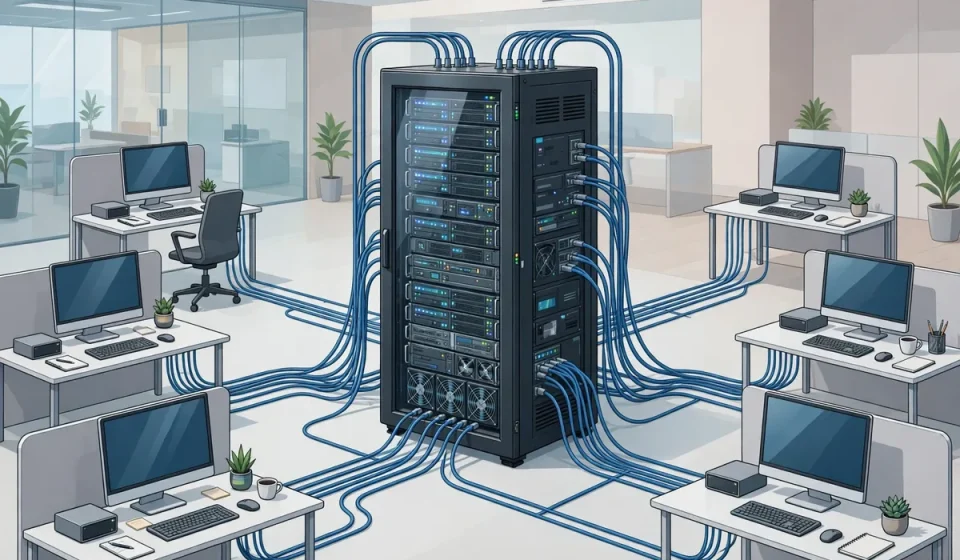

Server-based computing is a model in which applications run on central servers rather than on each user’s individual device. Users connect to the server, which does the processing and storage, and see only the application’s interface on their screen. Although the idea is decades old, it underpins many modern technologies, from virtual desktops to cloud applications, and it remains a powerful way to manage, secure and deliver software at scale.
This guide explains how server-based computing works, how it differs from traditional desktop computing and modern cloud models, its benefits and trade-offs, and where it is used today.
What Is Server-Based Computing?
In server-based computing, the server is the workhorse. Applications, data and processing live on servers in a data center or cloud, while client devices, which may be thin clients, laptops, tablets or even older PCs, mainly display the interface and send keyboard, mouse and touch input back to the server. When a user opens a document, runs a report or uses a business application, the work happens centrally, and only screen updates travel across the network.
This contrasts with traditional desktop computing, where each PC runs its own copy of applications and stores its own data. Server-based computing centralizes control: administrators install and update software once on the server, rather than on hundreds or thousands of devices, and data remains in the data center rather than scattered across endpoints.
How Server-Based Computing Works
A typical architecture has three layers: clients, a connection broker or gateway, and application or desktop servers. Users authenticate, often with multi-factor authentication, and are connected to a server session or a virtual desktop. Display protocols, such as Citrix HDX, Microsoft RDP or VMware Blast, compress and transmit screen updates efficiently, adapting to network conditions to keep the experience responsive.
Behind the scenes, servers may be physical or virtual, and sessions may be shared or dedicated. In a shared session model, many users run applications on the same server, isolated from each other. In a virtual desktop model, each user gets their own virtual machine, offering stronger isolation and customization at higher resource cost. Load balancing distributes users across servers, and high availability ensures that a server failure moves sessions or allows reconnection without widespread disruption.
Server-Based Computing vs. Related Models
| Model | Where Apps Run | Device Needs | Best For |
|---|---|---|---|
| Traditional desktop | On each PC | Powerful, managed PCs | Offline work, specialized hardware |
| Server-based computing | On central servers | Thin clients or basic devices | Centralized, managed workforces |
| Virtual desktop (VDI) | On virtual machines per user | Thin clients or any device | Personalized, isolated desktops |
| Cloud SaaS | Provider’s cloud, via browser | Browser only | Standard apps, no infrastructure |
These models overlap and are often combined. An organization may use SaaS for standard productivity tools, VDI for sensitive or specialized workloads, and server-based applications for legacy systems that cannot easily move to the cloud. The right mix depends on application requirements, security needs and user experience.
Benefits of Server-Based Computing
Central management is the headline benefit. Software updates, patches and configuration changes are made once, centrally, reducing the risk that some devices miss a critical update. Security improves because data stays in the data center, where it can be backed up, monitored and protected, rather than on laptops that can be lost or stolen. If a device is lost, no business data is lost with it, and access can be revoked centrally.
Cost and flexibility also matter. Organizations can extend the life of older devices, because the server does the heavy work, and they can support a wider range of devices, including tablets and thin clients, without installing complex software on each one. Remote and hybrid workers get the same applications and data whether they are in the office, at home or travelling, provided they have a reliable network connection.
Challenges and Limitations
Server-based computing depends heavily on the network. If connectivity is poor or unavailable, users may be unable to work, or the experience may become laggy, especially for graphics-intensive or multimedia applications. Latency matters: users far from the data center or on congested links will notice delays in typing, scrolling and video.
Centralization also creates concentration risk. A server, storage or network failure can affect many users at once, so high availability, load balancing and disaster recovery are essential, not optional. Licensing can be complex, because server-based and virtual desktop licensing often differs from desktop licensing, and organizations should confirm costs before committing. Finally, some applications, especially those needing local hardware, offline access or high-end graphics, may not suit a server-based model.
Examples and Use Cases
Healthcare is a classic example: clinicians access electronic health records from shared workstations and tablets, with patient data remaining in the secure data center rather than on each device. Financial services use server-based computing for trading, back-office and call-center applications where data control and rapid provisioning matter. Education uses it to give students access to specialized software from any lab computer, without installing it everywhere. Government and defense organizations use it to protect sensitive data and to provide consistent desktops to distributed teams.
Remote work has renewed interest in the model. Instead of shipping powerful laptops to every employee and managing software on each one, organizations can provide virtual desktops and published applications that follow the user across devices, with central security policies and monitoring.
Planning a Server-Based Computing Deployment
Start with the applications and users: which applications are suitable, how many concurrent users must be supported, and what performance they expect. Size servers for peak load, test with real users and real network conditions, and plan for printing, peripherals and offline exceptions, which are common sources of frustration. Choose display protocols and client devices that match your network, enforce strong authentication and session policies, and monitor user experience, not just server health, so problems are caught before they become complaints.
Server-based computing also connects to wider infrastructure decisions. For the facilities that host central servers, see this overview of what data centers are and how they work. Virtualized security for those environments is covered in this guide to the security virtual appliance and its use cases, and for smaller organizations weighing centralized management, this guide to cloud security for small business offers a practical starting point.
Frequently Asked Questions
What is server-based computing?
Server-based computing is a model where applications run on central servers and users access them from client devices, which mainly display the interface and send input back to the server.
How is it different from cloud computing?
Cloud computing is a delivery and ownership model, often via the internet, while server-based computing describes where processing happens; many cloud services use server-based principles internally.
What is a thin client?
A thin client is a lightweight device with minimal local processing and storage, designed mainly to connect to servers and display applications running remotely.
Does server-based computing work offline?
Generally no. Because applications run on servers, users need a network connection to access them, although some solutions offer limited offline or cached capabilities.
Is server-based computing secure?
It can improve security by keeping data centralized and easier to protect and monitor, but it requires strong authentication, network security and high-availability design to realize that benefit. Regular audits, monitoring and tested backup and recovery plans further strengthen this centralized security model.