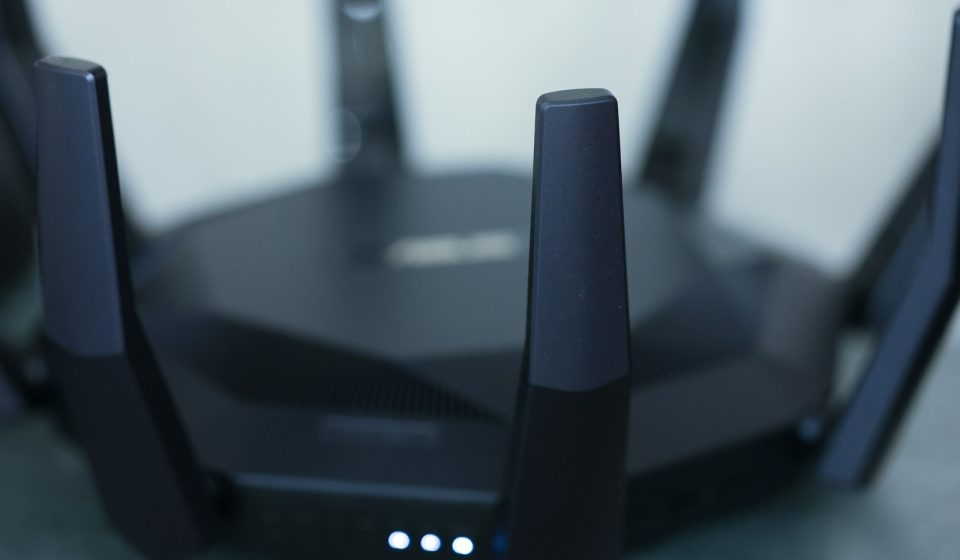

A dual WAN router is a router with two internet connections, known as two WAN ports, instead of one. It can use both connections at the same time or switch to the second connection automatically if the first one fails. For a home office, a small business or anyone who cannot afford to lose internet access, that second connection can be the difference between a normal working day and hours of downtime.
In this guide, we explain what a dual WAN router is, how load balancing and failover work, how to set one up, what to look for when you buy one, and when it is worth the extra cost. You do not need a second internet provider in every case, but when downtime costs money, a dual WAN setup is one of the simplest ways to make a home or office network more reliable.
What Is a Dual WAN Router?
WAN stands for Wide Area Network, and in a home or office it usually means the internet connection coming into your building. A standard router has one WAN port, which connects to one modem and one internet provider. A dual WAN router has two WAN ports, so it can connect to two modems, two providers, or one provider plus a mobile 4G or 5G backup connection.
With two connections, the router can do two useful things. Load balancing spreads traffic across both connections, so a large download and a video call can use different links and neither one slows the other down as much. Failover watches the main connection and, if it stops working, moves all traffic to the backup connection automatically, often within seconds. Many routers can do both at once: they balance traffic in normal use and fail over cleanly if one link dies.
Dual WAN is different from a router with two Wi-Fi bands. Dual-band Wi-Fi means the router broadcasts on 2.4 GHz and 5 GHz for wireless devices in your home. Dual WAN is about the internet connections coming into the building, not the wireless network inside it. A router can be both dual-band and dual WAN at the same time.
How Does Dual WAN Work?
When you set up a dual WAN router, you tell it how to treat the two connections. In load balancing mode, the router sends new connections down one WAN link or the other according to rules you set, for example by sending half the traffic each way, by sending more traffic down the faster link, or by sending certain types of traffic down a particular link. A video call might be pinned to the more stable link, while large downloads use the other one.
In failover mode, one connection is the primary and the other is the backup. The router checks the primary connection regularly, usually by trying to reach a public server such as a DNS server. If several checks fail, it decides the link is down and moves traffic to the backup. When the primary comes back, the router can switch back to it or stay on the backup until you choose to switch. Good routers do this without dropping every session, although a video call or a game in progress at the moment of the switch may still drop briefly.
Some dual WAN routers also support policy routing, which lets you write simple rules such as: send work laptop traffic over the wired fibre link, send the smart TV and guest network over the second link, and send all traffic over the backup link if the primary fails. Policy routing is useful in a small office, where different kinds of traffic have different priorities.
Dual WAN vs a Single WAN Router
| Feature | Single WAN router | Dual WAN router |
|---|---|---|
| Internet connections | One | Two |
| If the connection fails | Whole network goes offline | Traffic moves to the backup link |
| Total bandwidth | Limited to one link | Can combine both links for different traffic |
| Cost | Lower, one provider bill | Higher, two provider bills or a mobile backup |
| Best for | Most homes | Home offices, small businesses, critical work |
A dual WAN router does not magically double the speed of a single download. Most websites and apps open one connection at a time, and that connection is limited to the speed of one WAN link. Load balancing helps when many devices or many connections are used at once, which is the normal case in a busy household or office. It does not help much for one large file downloaded by one computer.
How to Set Up a Dual WAN Router
Setting up dual WAN is easier than it sounds, but it helps to plan the two connections first. Most setups use a fibre or cable connection as the primary link and a second fibre, cable or mobile 4G or 5G connection as the backup. The two links should be as independent as possible: if both come from the same provider on the same cable into the street, a fault in that cable can take both of them down at once.
- Connect both modems. Plug the first modem into WAN1 and the second modem or mobile hotspot into WAN2. If your router has a USB port for a mobile dongle, that can be your backup link.
- Check each link on its own. Test WAN1 and WAN2 separately first, so you know each connection works before you combine them.
- Choose a mode. In the router settings, choose load balancing, failover, or a mix of both. Set the primary link and the backup link, and set how the router should check whether a link is alive.
- Set the check interval. Tell the router which server to ping and how many failed checks should trigger a switch. Checking every few seconds with a short timeout gives a faster switch, but too aggressive a setting on a flaky link can cause it to switch back and forth.
- Test the failover. Unplug the primary modem and confirm that the network stays online on the backup. Plug it back in and confirm that traffic returns as expected. Do this test before you rely on it for work.
- Secure the router. Change the default admin password, update the firmware, and use a strong Wi-Fi password. For help with that last step, see our guide to how to make a strong WPA2 password.
If your network has more than a few devices, think about what sits behind the router as well. A network switch lets you connect many wired devices to the same router, and it keeps wired traffic fast and stable. In a busy home, Wi-Fi performance also matters: MU-MIMO lets a router talk to several devices at once, which helps when many phones, laptops and smart devices share the same network.
What to Look for When Buying a Dual WAN Router
- Two real WAN ports. Some routers advertise dual WAN but use a LAN port as the second WAN port. That works, but it leaves you with one fewer port for wired devices.
- Failover speed. Look for routers that can detect a dead link in under a minute and switch without a long delay.
- Load balancing rules. Policy routing, bandwidth limits per link and the ability to pin a device or service to one link are useful in a small office.
- Speed rating. Check the router’s throughputs for both WAN and Wi-Fi. A router with gigabit WAN ports is needed if your internet plan is faster than 100 Mbps.
- Mobile backup. A USB port for a 4G or 5G dongle, or a built-in SIM slot, makes a mobile backup much simpler.
- Firmware updates. Choose a brand that issues regular firmware and security updates, and check how long the model has been supported.
Popular choices include business routers from TP-Link, Ubiquiti, Netgear and ASUS, as well as pfSense and OPNsense on a small computer for people who want full control. Small business routers are usually the best value: they cost more than a basic home router, but far less than an enterprise device, and they include the load balancing and failover features you need.
Is a Dual WAN Router Worth It?
For most ordinary homes, a dual WAN router is not worth the extra monthly cost of a second internet connection. If you use the internet mainly for browsing, streaming and schoolwork, a single good connection is enough, and you can use your phone as a hotspot for the rare outage. For a home office, a small business, a clinic, a shop that takes card payments or anyone who runs online meetings all day, the answer is often yes. An outage of a few hours can cost more in lost work than a year’s worth of a cheap mobile backup plan.
A cheaper middle ground is a single WAN router with a mobile hotspot as a manual backup: you switch to the hotspot when the main link fails. It works, but it is slower to switch, you have to remember to do it, and devices already on the old Wi-Fi may need to reconnect. A dual WAN router removes that manual step. If you work from home and your internet is your office, that automation is worth paying for.
Common Dual WAN Problems and How to Fix Them
The most common problem is a router that switches between links too often. This usually happens when the health check is too aggressive or when the backup link is slow to respond. Increase the check interval, increase the number of failed checks required before a switch, and use a reliable public server for the check, such as a well-known DNS server, rather than a server that is often slow.
Another common issue is that some websites log you out when the router switches links. That happens because many websites tie your session to your IP address, and a switch changes that address. Banks and some work systems are especially sensitive to this. If that is a problem, use policy routing to pin sensitive traffic to one link, so your banking and work apps stay on the primary connection and only other traffic uses the second link. A third problem is slow speed on one link: check the cable, check the modem, and test each link on its own with a speed test before you blame the router.
Frequently Asked Questions
What is a dual WAN router?
A dual WAN router is a router with two WAN ports that can connect to two internet connections at the same time. It can balance traffic across both connections and switch to the backup connection automatically if the main connection fails.
Does a dual WAN router double my internet speed?
No, not for a single download or stream. A single connection is limited to the speed of one WAN link. Dual WAN helps when many devices or connections are in use at once, because different traffic can use different links, and it protects you if one link fails.
Do I need two internet providers for dual WAN?
You need two internet connections, but they do not have to be from two different providers. Many people use a fibre or cable connection as the primary link and a mobile 4G or 5G connection as the backup. Two providers are better, because a fault with one provider is less likely to affect the other.
Can I use a dual WAN router at home?
Yes. Dual WAN routers are available for homes and small offices, and many business routers are now affordable for home use. A dual WAN setup is most useful if you work from home, run a small business, or cannot afford to lose internet access for a few hours.
What is the difference between dual WAN and dual band?
Dual WAN refers to two internet connections coming into your building. Dual band refers to Wi-Fi inside your home, on the 2.4 GHz and 5 GHz bands. A router can be both dual band and dual WAN, and the two features do different jobs.
Conclusion
A dual WAN router is a simple way to make a home or office network more reliable. With two internet connections, it can balance traffic, fail over automatically when a link dies, and keep video calls, work and payments running when a single connection would leave you offline. It costs more than a single WAN router, and it needs a second connection to be useful, but for anyone whose work depends on being online, that extra reliability is worth it. Test your failover before you need it, pin sensitive traffic to one link, and keep your router firmware up to date.