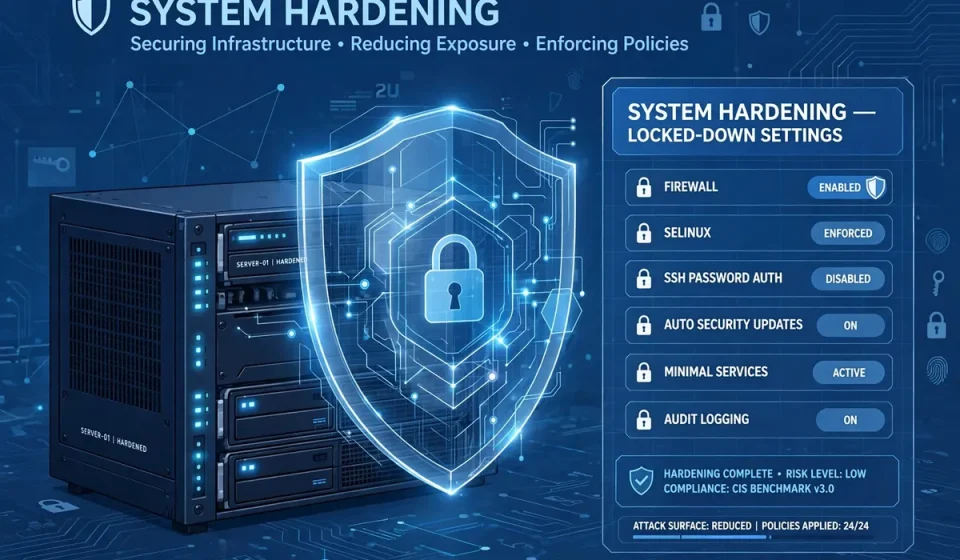

System hardening is one of the most effective ways to protect servers, computers, and cloud workloads from attack. It means removing what you do not need, locking down what you keep, and checking that those controls stay in place. This guide explains system hardening in plain language and gives you a practical plan you can apply this week, whether you manage one small server or a growing cloud environment.
What Is System Hardening?
System hardening is the process of reducing a system’s attack surface. An attack surface is every entry point an attacker could use: open ports, unused services, old software, weak accounts, and misconfigured settings. Hardening closes or controls those entry points. It does not replace antivirus software, firewalls, or backups. Instead, it makes every other control more effective because there is simply less for an attacker to exploit.
Why System Hardening Matters
Most successful attacks do not use exotic techniques. They use known weaknesses: an unpatched service, a default password, an account with too much power, or a port left open by mistake. System hardening directly addresses those weaknesses. It also helps with compliance, incident response, and recovery, because a well-documented, standard system is easier to inspect and rebuild.
Hardening is especially important in the cloud. Cloud systems can be created quickly, copied easily, and exposed accidentally. A single public storage bucket, open management port, or overprivileged role can put many workloads at risk. A consistent hardening standard prevents each new system from starting from scratch.
Core Principles of System Hardening
Three principles guide good hardening. First, least privilege: give each user, service, and application only the access it needs, and nothing more. Second, least functionality: install and run only what the system requires. Third, defence in depth: do not rely on one control. Combine patching, access control, network limits, logging, and backups so that one failure does not lead to a breach.
Start From a Known-Good Baseline
Do not harden systems one by one with different settings. Create a baseline image or configuration for each system type, such as a web server, a database server, or a standard laptop. Apply the baseline every time, test it, and update it when requirements change. Baselines make audits faster and make unusual settings stand out.
Operating System Hardening
Start with the operating system. Remove or disable unused software, services, and features. On Linux, list running services and stop those you cannot justify. On Windows, remove unneeded roles, features, and legacy components. Turn off file sharing, remote access tools, and developer services unless a specific, approved task requires them.
Next, secure the boot and file system. Use full-disk encryption where possible, require a firmware password on sensitive machines, and set strong permissions on system files and configuration folders. Disable automatic login, guest accounts, and autorun features. Keep a record of every change so another administrator can review it later without guessing.
Account and Access Hardening
Accounts are a favourite target because they give an attacker legitimate-looking access. Remove dormant accounts, shared accounts, and accounts for former staff or contractors. Rename or disable default administrator accounts where the platform allows it, and never use a shared password across systems.
Require multi-factor authentication for remote access, cloud consoles, and administrator accounts. Use long, unique passwords stored in a password manager, and set lockout or delay rules for repeated failed logins. Review administrator rights regularly. If someone no longer needs elevated access, remove it promptly. Small, regular account reviews prevent privilege creep.
Network Hardening
Network hardening controls what can reach a system and what that system can reach. Close unused ports, block unnecessary outbound traffic, and use a host firewall in addition to any network firewall. Remote administration should use encrypted, authenticated connections only, and should be limited to trusted networks or a virtual private network.
For a clear explanation of how firewalls filter traffic, see this guide to what a network firewall is and how it works. Remote desktop and terminal access deserve special care, so review how terminal services work and how to secure them before exposing them to users. Finally, separate sensitive systems from general office traffic with network segmentation, so a compromise in one area does not automatically reach everything else.
Patching and Vulnerability Management
Patching is the most routine, and often the most neglected, part of system hardening. Apply security updates for the operating system, applications, browsers, and firmware on a regular schedule. Test important patches in a staging environment first, but do not let perfect testing delay critical fixes. Known vulnerabilities are widely scanned within hours of disclosure.
Keep an inventory of hardware and software so you know what needs patching. Remove end-of-life software that no longer receives security updates, or isolate it if it cannot yet be replaced. Scan systems regularly, prioritise vulnerabilities that are exposed to the internet or that allow remote code execution, and track fixes until they are confirmed.
Hardening Cloud Systems
Cloud hardening adds shared-responsibility checks. You still secure your applications, data, and identities, while the provider secures the underlying infrastructure. Review identity and access policies, storage permissions, logging, and network rules for every cloud account. Turn on central logging, alerts for unusual activity, and versioning or backups for important data.
Use infrastructure as code or approved templates where possible. That way, a hardened configuration is not a one-time manual effort but a repeatable result. Review cloud settings after every major change, because a new service or integration can quietly widen access.
System Hardening Checklist
Use this checklist as a starting point, then adapt it to your systems and risk level. Work through one area at a time, and record completion for each item.
| Area | Hardening Step | Why It Matters |
|---|---|---|
| Operating system | Remove unused services and software | Reduces entry points |
| Operating system | Enable disk encryption and secure boot | Protects data if hardware is lost |
| Accounts | Remove dormant accounts and enforce multi-factor authentication | Blocks stolen-password attacks |
| Accounts | Apply least privilege and review administrator rights | Limits damage from compromise |
| Network | Close unused ports and enable host firewalls | Blocks unwanted connections |
| Network | Use encrypted remote access and network segmentation | Protects management traffic |
| Patches | Apply security updates on a fixed schedule | Closes known vulnerabilities |
| Patches | Scan, prioritise, and verify fixes | Confirms risk is really reduced |
A Practical Step-by-Step Hardening Plan
Many guides list controls but do not explain where to start. This is the extra, practical angle that makes hardening achievable. First, inventory one system type and record its services, accounts, ports, and software. Second, compare it with a recognised benchmark, such as a CIS Benchmark, and note every gap. Third, apply the safest, highest-impact fixes first: patching, account cleanup, and closing ports.
Fourth, test the system with its normal users and applications to make sure essential work still functions. Fifth, save the result as your baseline and apply it to similar systems. Finally, schedule a review every month or quarter. Compliance checking tools can help here; for example, learn how SCAP compliance checking works and how automated checks can confirm that settings remain correct over time.
Using CIS Benchmarks Without Getting Overwhelmed
CIS Benchmarks provide detailed, tested recommendations for common operating systems and cloud platforms. You do not need to apply every recommendation on day one. Start with Level 1 recommendations, which are designed for general use, then consider Level 2 settings for high-security systems. Document any exception, explain why it exists, and set a review date for it.
Common System Hardening Mistakes
The first mistake is hardening once and never checking again. Software updates, new users, and configuration changes can undo good settings. The second mistake is focusing only on the server while ignoring laptops, cloud accounts, and network devices. Attackers use the weakest system they can find.
The third mistake is locking a system so tightly that users create workarounds, such as sharing accounts or disabling security tools. Hardening should be tested with real work in mind. The fourth mistake is skipping logging. If you do not collect and review logs, you may not notice a failed hardening control or a successful attack until much later.
Conclusion
System hardening is not a single tool or a one-time project. It is a disciplined habit: remove the unnecessary, protect what remains, patch promptly, and verify regularly. Start with one baseline, apply this checklist, and improve it with each review. A smaller, well-controlled attack surface gives your other security tools a far better chance to work.
Frequently Asked Questions
What is system hardening in simple terms?
System hardening means securing a computer, server, or cloud system by removing unnecessary software and services, closing unused ports, strengthening accounts, and applying updates, so attackers have fewer ways to break in.
How often should system hardening be reviewed?
Review hardening at least quarterly, and after major changes, new software, or security incidents. Automated scans and configuration checks help catch settings that drift between reviews.
Does system hardening slow down a system?
It can improve performance by removing unused services, but an overly strict setting may block legitimate work. Test changes with normal users before applying them widely, and document exceptions.
What is the difference between hardening and patching?
Patching fixes known vulnerabilities in software you keep. Hardening is broader: it also removes unneeded software, tightens accounts and network access, and sets secure defaults, so fewer vulnerabilities are exposed in the first place.
Should small businesses bother with system hardening?
Yes. Small systems are often targeted precisely because they are less protected. A simple baseline, strong accounts, a firewall, and regular patching provide strong protection without enterprise tools or budgets.